
SAP Human Capital Management (HCM
SAP Human Capital Management (HCM) is a comprehensive suite of HR solutions that manages the entire employee lifecycle, from recruitment and on boarding to payroll and talent development. While it was originally a module within SAP's ERP system, it has largely evolved into the cloud-based SAP platform, which offers enhanced tools for a modern workforce. Key functions include personnel administration, payroll processing, organizational management, and talent management, all designed to streamline HR operations and support data-driven workforce decisions. Key features and functions
Personnel Administration: Manages all employee data, including hiring, transfers, and promotions.
Organizational Management: Helps define and manage the company's organizational structure, positions, and reporting lines.
Payroll Processing: Automates payroll calculations, including taxes and deductions, while ensuring legal compliance.
Time Management: Tracks employee attendance, absences, and work schedules.
User Manual – Personnel Administration
Table of Contents
1.1. Company Code
1.2. Personnel Area
1.3. Personnel Subarea
1.4. Employee Group
1.5. Employee Subgroup
1.6. Payroll Areas
Personnel Actions (PA40)
HIRING Action
• Create Personal Data Info type 0002
• Create Organizational Assignment Infotype (0001)
• Create Family/Related Person: Info type 0021
• Create Address: Info type – 0006
• Create Bank Details: Info type 0009
• Create Monitoring of task: Info type – 0019
• Create Contract Elements: Info type - 0016
• Create Nominations: Info type - 0591
• Create Education: Info type – 0022
• Create Other / Previous Employers: Info type – 0023
• Create Personal ID’s: Info type – 0185
• Create Communication: Info type – 0105
• Create Challenge: Info type – 0004
• Create Previous Employment Tax Details: Info type – 0580
• Create HRA/CLA/COA: Info type – 0581
• Create Provident Fund Contribution: Info type – 0587
• Probation extension
• Probation Conformation
• Transfer leaving
• Transfer joining
• Promotion
• Promotion joining
• Change in Pay
• Demotion Salary
• Demotion Position
• Suspension
• Suspension Revocation
Scope
This user manual is prepared in the perspective of a HCM end user and hence the definitions, meanings and context of this manual are limited to that extent. The primary objective of this manual is to guide the user to create and maintain transactions in a live environment and maintain the data in the system.
Company Code:
Company codes are how HR integrates itself in SAP with all other modules, especially with FI-CO, and this is central to the whole design. As per the inputs received from FI-CO Module, the Company code for Ethiopia Electric Power is: - EEP1
Personnel Area:
Personal Areas are the logical groups. Within each legal entity, the total workforce is divided into logical groups (personnel areas), which are used primarily for reporting and authorizations. (Four Character – alpha numeric) Below Mentioned are all personnel areas under various company codes of EEP1: -
| Companycode | Personnel Area | |
| EEP1 | Code | Description |
| EEP1 | EP01 | Addis Ababa |
| EEP1 | EP02 | Central Region I |
| EEP1 | EP03 | Central Region II |
| EEP1 | EP04 | West Region (Nekemit) |
| EEP1 | EP05 | North West Region (Bahirdar) |
| EEP1 | EP06 | East Region I |
| EEP1 | EP07 | North East Region I |
| EEP1 | EP08 | South Region I |
| EEP1 | EP09 | North Region (Mekele) |
| EEP1 | EP10 | South West Region (Jimma) |
| EEP1 | EP11 | Power Plants |
| EEP1 | EP12 | Projects |
| EEP1 | EP13 | Central Region III |
| EEP1 | EP14 | East Region II |
| EEP1 | EP15 | South Region II |
| EEP1 | EP16 | North East Region II |
Personnel Subarea:
Bifurcation of each personnel area into further logical groups is known as Personnel Subarea. PSA is a specific area of the company organized according to certain aspects of personnel, time management and payroll. (Four Character–alpha numeric) Below Mentioned are all personnel subareas under various personnel areas of EEP: -


Employee Group
The Employee Group allows you to divide employees into groups and allows to define their relationship to the Enterprise. Below mentioned are the Employee Groups defined for EEP: (One Character – Alpha numeric)
Employee Group | |
Code | Description |
C | Contract |
P | Permanent |
R | Contract (Retired) |
T | Trainee |
Employee Subgroup
Division of employee groups further into smaller groups, are known as Employee Subgroup. This Employee Sub Group allows you to define the personnel structure. Among other things it helps in defining work schedule rules, payroll accounting, validity of wage types, authorizations, etc. - (Two Character – alpha numeric) Below mentioned are the Employee Subgroups defined for EEP:
| Employee Sub Group | |
| Code | Text - 20 |
01 | Executives |
| 02 | Directors |
03 | Project Managers |
| 04 | Regional Leaders |
| 05 | Plant Managers |
| 06 | Managers |
| 07 | Substation Managers |
| 08 | Professionals - Tech |
| 09 | Professionals - Non- |
| 10 | Semi-profession-Tec |
| 11 | Semi-profession-Non |
| 12 | Vocationals |
| 13 | General Service |
Payroll Areas
Payroll Area is based on the characteristic of Pay Process. It groups together personnel numbers that are to be processed on the same date and also, it determines the exact payroll period. Based on that following Payroll Areas are defined for EEP:
| Payroll Area | |
| Code | Text - 20 |
| Z1 | Permanent |
| Z2 | Contact |
| Z3 | Contact Retired |
| Z4 | Trainee |
Log on
After log on to SAP, the network logon screen will appear as shown below. This is followed by the Logon screen (tile SAP R/3) Enter the Client, User and Password. Follow the detailed instructions given below:
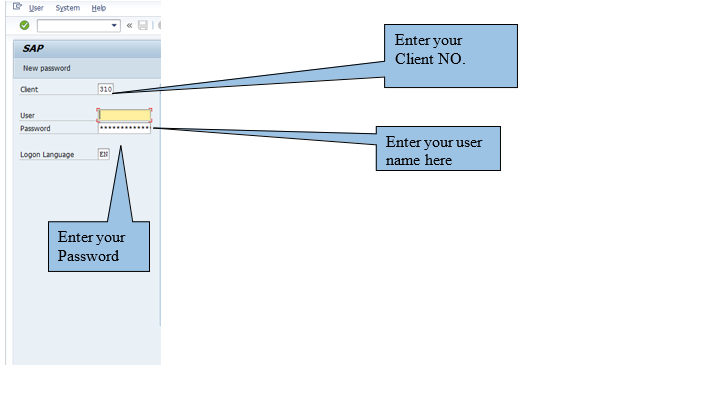
Press the TAB key after data is entered in a so that the cursor moves to the beginning of the next field.
To log on to the R/3 System, make the following entries in the fields on the logon screen
In the Client field, enter the client number (database number).If a default client number (database number) appears
in the field, you can either change it by typing over it, or you can accept it by leaving it. Press the TAB key to move the cursor to the User ID field.
In the User ID field, enter your user ID. Press the TAB key to move the cursor to the Password field.
In the Password field, enter the initial password the system administrator has given Press ENTER to log on
Personnel Administration – Actions (PA40)
Purpose
To familiarize with the SAP menu path and the procedure for executing any of the configured personnel actions for an employee.
Menu Path: SAP standard menu - Human Resources -> Personnel Management -> Administration -> HR Master Data > Personnel Actions
Transaction Code PA40:
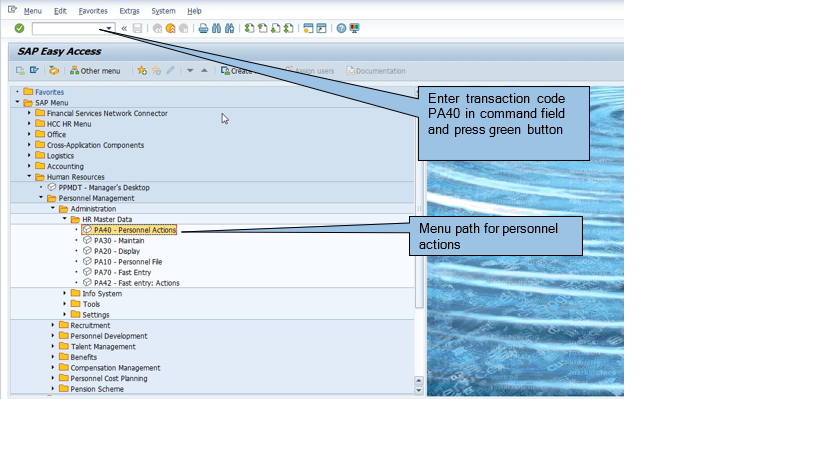
NOTE: In each personnel action, screens of the relevant info types will appear in a predefined sequential order - these info types are to be „saved‟ each time these are completed/filled. [For example, for hiring, infotype #- 0000, 0002, 0001, 0006, etc. will appear automatically one after the other]